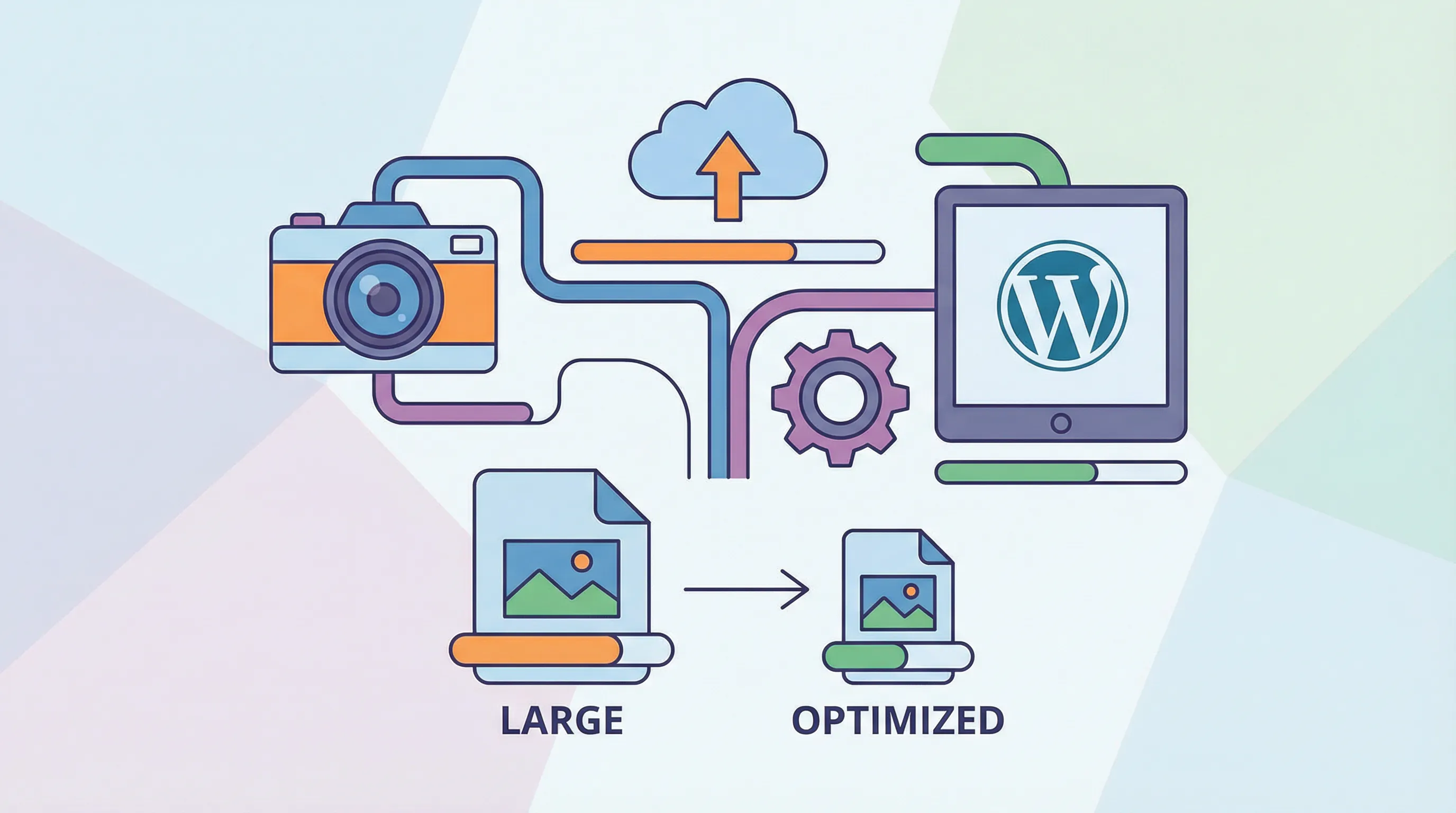
Images make up over 60% of the average webpage's total size. For WordPress sites, unoptimized images are often the single biggest performance killer—slowing down page loads, hurting your search rankings, and frustrating visitors who won't wait around for a bloated page to render.
The good news? You don't need to become a Photoshop expert or manually compress every image you upload. This guide covers everything you need to know about optimizing images for WordPress, from choosing the right format to automating the entire process.
Why Image Optimization Matters for WordPress Sites
The Performance Problem
When someone visits your site, their browser downloads every asset on the page—including images. A single unoptimized photograph can easily be 3-5MB, while the same image properly optimized might be 150KB. Multiply that across a gallery page or image-heavy blog post, and you're looking at page weights that take seconds to load on even fast connections.
According to the HTTP Archive's Web Almanac, images remain the largest contributor to page weight on most websites. Google's research shows that 53% of mobile users abandon sites that take longer than 3 seconds to load.
SEO and Core Web Vitals Impact
Google's Core Web Vitals directly measure loading performance. Largest Contentful Paint (LCP)—how quickly your largest visible element loads—is often determined by your hero image or featured image. Sites with poor LCP scores get penalized in search rankings.
Optimized images load faster, improve your Core Web Vitals scores, and signal to search engines that your site provides a good user experience.
Choosing the Right Image Format
JPEG vs PNG vs WebP vs AVIF
Not all image formats are created equal:
JPEG excels at photographs and complex images with gradients. It uses lossy compression, meaning some data is discarded—but with the right quality setting, the difference is invisible to the human eye.
PNG preserves transparency and works best for graphics, logos, screenshots, and images with sharp edges or text. It uses lossless compression, so files tend to be larger than JPEG equivalents.
WebP is the modern standard, offering 25-35% smaller file sizes than JPEG at equivalent quality. It supports both lossy and lossless compression, plus transparency. Browser support is now universal across Chrome, Firefox, Safari, and Edge.
AVIF is even more efficient than WebP but has limited browser support. It's worth considering for cutting-edge optimization but requires fallbacks.
When to Use Each Format
- Photos and hero images: WebP (with JPEG fallback)
- Logos and icons: SVG when possible, otherwise PNG
- Screenshots: WebP or PNG
- Animated images: WebP or optimized GIF
Image Compression: Lossy vs Lossless
Finding the Quality Sweet Spot
Compression reduces file size by removing data. Lossy compression discards information that's difficult to perceive, while lossless compression reduces file size without removing any data.
For photographs, lossy compression at 80-85% quality typically reduces file size by 40-60% with no visible quality loss. Going below 70% quality often introduces noticeable artifacts.
Compression Without Visible Quality Loss
The key is finding your quality threshold. For most WordPress sites, a JPEG quality of 82% and WebP quality of 80% provides excellent results. These settings deliver significant savings while maintaining image clarity for typical viewing conditions.
Sizing Images Correctly for WordPress
Maximum Dimension Guidelines
There's no point uploading a 6000x4000 pixel image when your content area is 800 pixels wide. Your server and browser will do extra work, and visitors will download unnecessary data.
A practical maximum is 2560 pixels on the longest edge—this covers full-width hero images on large displays while keeping file sizes reasonable. For blog content images, 1200-1600 pixels wide is typically sufficient.
Understanding WordPress Image Sizes
WordPress automatically generates multiple sizes when you upload an image (thumbnail, medium, large). However, it doesn't optimize the original or compress these generated sizes. That's why a dedicated optimization solution is essential.
Advanced Optimization Techniques
Lazy Loading
Lazy loading defers the loading of images until they're about to enter the viewport. WordPress includes native lazy loading since version 5.5, adding loading="lazy" to images automatically. This means images below the fold don't block initial page rendering.
Responsive Images and srcset
Modern browsers support the srcset attribute, which lets you specify multiple image sizes. The browser then chooses the most appropriate size based on the visitor's screen dimensions and resolution. WordPress handles this automatically when properly sized images are available.
Stripping EXIF Metadata
Digital cameras embed metadata (EXIF data) in every photo—including camera model, settings, GPS coordinates, and timestamps. This data adds file weight and can pose privacy concerns. Stripping EXIF data typically saves 5-15KB per image while protecting location information you may not want public.
Using a CDN
A Content Delivery Network (CDN) serves your images from servers geographically close to each visitor. This reduces latency and speeds up delivery. Many WordPress hosts include CDN functionality, or you can use services like Cloudflare.
The Easy Solution: Automatic Image Optimization
Manual optimization works, but it doesn't scale. If you're uploading multiple images per week, you need automation.
CraftedPath Media Optimizer handles the entire workflow automatically. Every image you upload is resized, compressed, and converted to WebP—no external APIs, no monthly limits, no ongoing costs.
Key Features That Save Hours
Automatic Resizing: Set your maximum dimensions once. Every upload resizes intelligently while preserving aspect ratio.
Smart Compression: Reduce file size by 40-60% with configurable quality settings. No visible quality loss at recommended settings.
WebP Conversion: Modern format support out of the box. Images automatically convert on upload.
Automatic WebP Serving: The plugin wraps images in <picture> tags on the frontend, serving WebP to supported browsers with automatic JPEG/PNG fallback.
EXIF Stripping: Remove camera metadata and GPS coordinates automatically for privacy and smaller files.
100% Local Processing: All optimization happens on your server using GD or ImageMagick. No data sent to external services, no per-image fees, no usage limits.
Optimization Stats: Each image stores its original size, final size, and savings percentage—so you can see exactly how much bandwidth you're saving.
How It Works
Install and activate the plugin. Configure your preferred maximum dimensions and quality settings. Upload images as usual. The plugin intercepts each upload, applies your optimization settings, and stores the result. No extra clicks, no manual processing, no remembering to compress before uploading.
Common Mistakes to Avoid
Uploading massive originals: Don't upload the 8000x6000 pixel file straight from your camera. Resize to reasonable dimensions before uploading, or let an optimization plugin handle it.
Ignoring existing images: New uploads are only half the battle. Images already in your media library need optimization too.
Over-compressing: Quality settings below 70% often produce visible artifacts. The few extra KB saved isn't worth degraded image quality.
Skipping WebP: Browser support is universal now. There's no reason to serve only JPEG when WebP delivers 25-35% smaller files.
Forgetting thumbnails: WordPress generates multiple sizes per upload. Make sure your optimization solution handles these generated sizes, not just the original.
Frequently Asked Questions
Does WordPress automatically optimize images?
No. WordPress creates different sizes but doesn't compress or optimize them. You need a plugin or manual optimization.
What's the best image size for WordPress?
For full-width images, 2560 pixels maximum. For in-content images, 1200-1600 pixels wide. The exact dimensions depend on your theme's content area width.
Can I optimize images already in my media library?
Yes, with the right plugin. CraftedPath Media Optimizer processes uploads automatically, ensuring every new image is optimized.
Will optimization hurt image quality?
Not with proper settings. Quality levels of 80-85% for JPEG and WebP deliver significant file savings with no perceptible quality loss.
Start Optimizing Today
Image optimization isn't optional for modern WordPress sites. Between Core Web Vitals requirements, mobile-first indexing, and user expectations for fast-loading pages, every unoptimized image costs you visitors and rankings.
The CraftedPath Media Optimizer eliminates the manual work entirely. Set it once, and every future upload gets automatic resizing, compression, and WebP conversion. No monthly fees, no usage limits, no external APIs—just faster pages forever.